

Every year, millions of aspiring authors dream of writing their first book, but many never start because they think they need expensive software or complicated tools. The truth is, one of the world’s most successful writing platforms is completely free and already sitting in your web browser. Writing a Book in Google Docs has become the go-to method for countless published authors, from first-time novelists to bestselling writers who’ve discovered the power of simplicity.
Google Docs offers everything a new author needs: automatic saving, cloud storage, easy collaboration, and professional formatting tools. Unlike complex writing software that can overwhelm beginners, Google Docs focuses on what matters most—getting your words on the page. Whether you’re planning a memoir, fiction novel, or business book, this platform provides a straightforward path from blank page to finished manuscript.
Key Takeaways
• Google Docs is completely free and provides all essential tools needed for writing a professional book manuscript
• Automatic cloud saving ensures your work is never lost, with access from any device anywhere
• Built-in collaboration features make it easy to work with editors, beta readers, and writing partners
• Simple export options allow you to convert your finished book into formats required by publishers and self-publishing platforms
• Voice typing and organizational tools help maintain productivity and keep large manuscripts well-structured
Can You Write a Book in Google Docs?
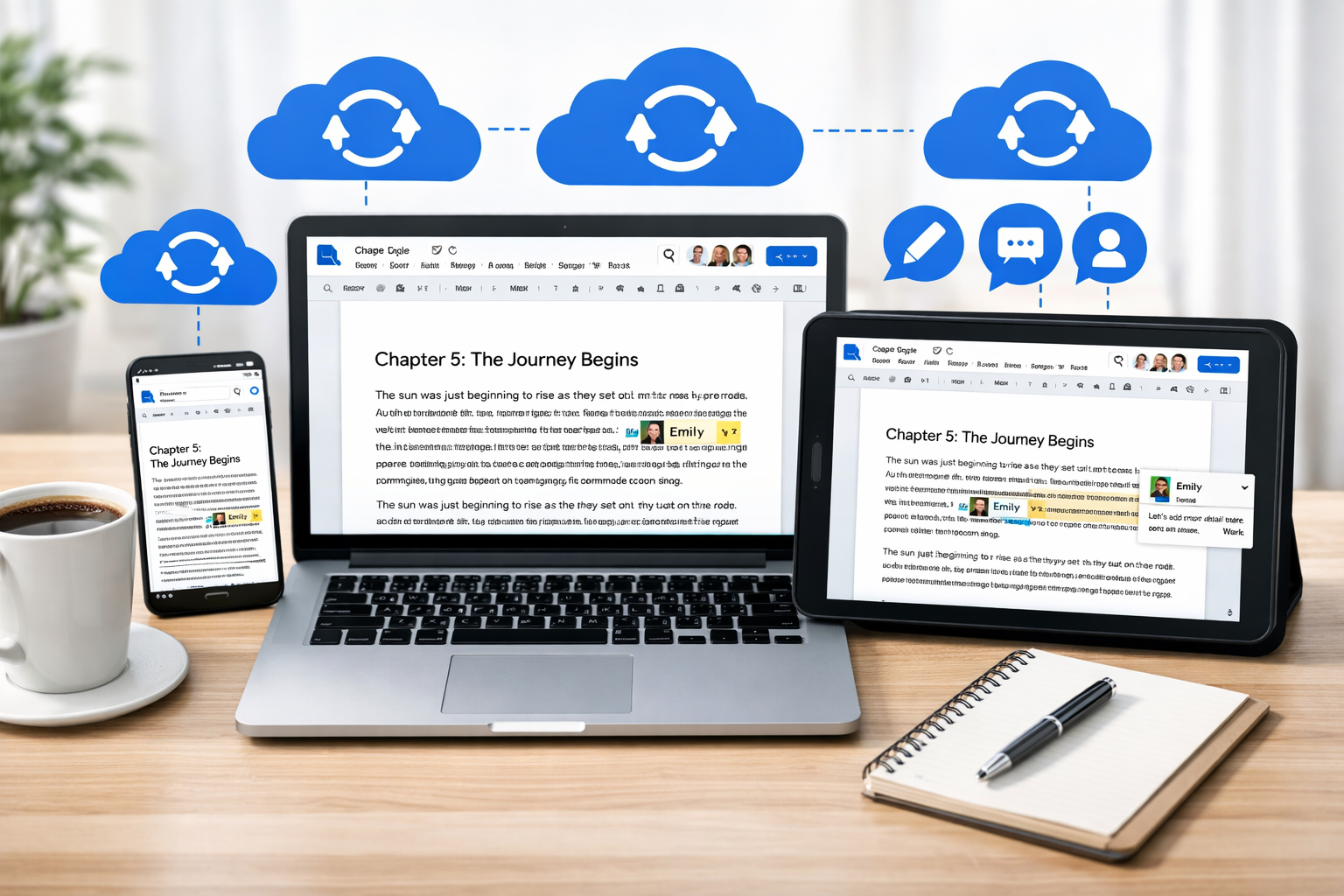
Absolutely! Thousands of successful authors have written and published books entirely within Google Docs. This cloud-based word processor offers everything needed for professional book writing, from initial draft to final manuscript preparation.
The platform’s strength lies in its automatic saving feature. Every change saves instantly to Google’s servers, eliminating the fear of losing hours of work due to computer crashes or power outages. This reliability has made Google Docs a favorite among writers who’ve experienced the heartbreak of lost manuscripts.
Cross-device accessibility represents another major advantage. Start writing on your laptop during lunch break, continue on your tablet during your commute, and add notes on your phone before bed. Your manuscript stays perfectly synchronized across all devices, making it easier to maintain consistent writing habits.
For beginners especially, Google Docs removes technical barriers that often prevent people from starting their books. There’s no software to purchase, no complex features to master, and no compatibility issues to solve. You simply open your browser and start writing.
Professional authors appreciate Google Docs because it focuses on writing rather than formatting. While specialized writing software offers numerous features, many authors find these tools distracting. Google Docs provides essential formatting without overwhelming complexity, allowing writers to concentrate on storytelling and content creation.
Benefits of Writing a Book in Google Docs
💰 Completely Free to Use
Unlike expensive writing software that can cost hundreds of dollars, Google Docs requires only a free Google account. This makes professional book writing accessible to everyone, regardless of budget constraints.
☁️ Automatic Cloud Backup
Your manuscript backs up automatically every few seconds. Even if your computer crashes or gets stolen, your book remains safe in the cloud. This peace of mind allows writers to focus on creativity instead of worrying about data loss.
🤝 Easy Collaboration and Editing
Share your manuscript with editors, beta readers, or writing partners with a simple link. Collaborators can leave comments, suggest edits, or make direct changes using different permission levels. This feature streamlines the editing process significantly.
🛠️ Simple but Powerful Formatting Tools
Google Docs includes all formatting features needed for professional manuscripts: headers, page numbers, different font styles, spacing options, and more. The interface remains clean and intuitive without overwhelming new users.
📱 Universal Device Compatibility
Access your book from computers, tablets, smartphones, or any device with internet access. The mobile app allows for writing and editing on the go, perfect for capturing inspiration whenever it strikes.
📊 Built-in Word Count Tracking
Monitor your progress with real-time word count displays. Set daily writing goals and track your advancement toward completion, helping maintain motivation throughout the writing process.
How to Set Up Google Docs for Writing a Book
Step 1: Create Your Document
- Go to docs.google.com and sign in with your Google account
- Click the “+” button or “Blank document” to create a new file
- Immediately rename your document with your book title (click “Untitled document” at the top)
Step 2: Configure Page Settings
- Go to File > Page setup
- Set margins to 1 inch on all sides (standard manuscript format)
- Choose 8.5″ x 11″ page size for most books
- Select Portrait orientation
Step 3: Choose Professional Fonts
- Times New Roman (12pt) – Traditional publishing standard
- Arial (11pt) – Clean, readable alternative
- Calibri (11pt) – Modern, professional option
Step 4: Set Line Spacing
- Select all text (Ctrl+A)
- Click the line spacing button in the toolbar
- Choose Double spacing for draft manuscripts
- Use 1.15 or 1.5 spacing for final versions
Step 5: Enable Page Breaks for Chapters
Insert page breaks between chapters to maintain proper formatting:
- Place cursor at the end of each chapter
- Go to Insert > Break > Page break
- This ensures each chapter starts on a new page
Organizing Your Book in Google Docs
Proper organization becomes crucial when writing longer manuscripts. A well-structured document makes editing, navigation, and collaboration much easier.
Use Heading Styles for Chapters
- Type your chapter title
- Highlight the text
- Click “Normal text” dropdown in toolbar
- Select “Heading 1” for chapter titles
- Use “Heading 2” for major sections within chapters
Create an Automatic Table of Contents
- Place cursor where you want the table of contents
- Go to Insert > Table of contents
- Choose your preferred style
- Google Docs automatically updates the table as you add chapters
Use Bookmarks for Quick Navigation
For important scenes or sections:
- Select the text you want to bookmark
- Go to Insert > Bookmark
- A bookmark link appears that you can reference later
Consider Document Splitting
For very long books (over 100 pages), consider splitting into multiple documents:
- Document 1: Chapters 1-5
- Document 2: Chapters 6-10
- Master Document: Table of contents with links to each section
This approach improves loading speed and makes collaboration more manageable.
Helpful Google Docs Features for Authors
🎤 Voice Typing for Faster Writing
Perfect for writers who think faster than they type:
- Go to Tools > Voice typing
- Click the microphone icon
- Speak clearly and naturally
- Edit the transcribed text as needed
Voice typing works especially well for dialogue and first drafts, allowing natural speech patterns to flow onto the page.
💬 Comments and Suggestions for Editing
Commenting system allows precise feedback:
- Highlight text and click the comment icon
- Leave notes for yourself or collaborators
- Tag specific people using @ mentions
Suggestion mode tracks all changes:
- Click the pencil icon in the top right
- Select “Suggesting” mode
- All edits appear as suggestions rather than direct changes
- Accept or reject suggestions individually
📈 Version History Tracking
Never lose previous versions of your work:
- Go to File > Version history > See version history
- Browse through all saved versions
- Restore previous versions if needed
- Name important versions for easy reference
📊 Word Count and Writing Goals
Track progress with built-in analytics:
- Tools > Word count shows current statistics
- Set daily word count goals
- Monitor pages, characters, and paragraphs
- Use this data to maintain consistent writing habits
✅ Grammar and Spell Check
Google Docs automatically identifies:
- Spelling errors (red underlines)
- Grammar issues (blue underlines)
- Style suggestions (yellow underlines)
For more advanced editing, consider the built-in grammar suggestions or third-party tools that integrate with Google Docs.
Writing and Editing Your Book Efficiently
Establish Daily Writing Goals
Successful authors often credit consistent daily writing for their success. Developing strong writing habits becomes easier with specific targets:
- 500 words daily = 182,500 words annually (2-3 books)
- 1,000 words daily = 365,000 words annually (4-5 books)
- 250 words daily = 91,250 words annually (1 book)
Use Distraction-Free Writing
Google Docs offers a clean interface, but you can make it even more focused:
- Hide the toolbar: View > Print layout (removes formatting distractions)
- Full-screen mode: F11 on most browsers
- Turn off notifications during writing sessions
- Use airplane mode for completely offline writing
Implement the Two-Draft System
Many successful authors follow this approach:
Draft 1 (Creation): Write without editing. Focus solely on getting the story down. Don’t worry about grammar, perfect word choice, or structure.
Draft 2 (Revision): Use suggestion mode to make major changes. Focus on plot, character development, pacing, and overall structure.
Schedule Regular Review Sessions
Set aside specific times for:
- Weekly reviews: Read the previous week’s writing
- Monthly assessments: Evaluate overall progress and adjust goals
- Quarterly deep edits: Major structural changes and improvements
Leverage Collaboration Features
Even if writing alone, you can collaborate with yourself:
- Leave comments for future editing sessions
- Use different colored text for notes vs. actual content
- Create separate documents for character notes, plot outlines, and research
Exporting Your Book from Google Docs
Once your manuscript is complete, you’ll need to convert it into formats required by publishers or self-publishing platforms. Google Docs offers several export options that work with most publishing requirements.
Microsoft Word Format (.docx)
Most traditional publishers and editors prefer Word format:
- Go to File > Download > Microsoft Word (.docx)
- The file downloads to your computer
- This format preserves most formatting and comments
- Perfect for submitting to agents or traditional publishers
PDF Format for Review
PDF files maintain exact formatting across all devices:
- File > Download > PDF Document (.pdf)
- Choose “Current document” or specific page ranges
- PDFs work well for beta readers and final reviews
- Professional appearance for sharing with potential collaborators
Plain Text for Flexibility
Some platforms require plain text submissions:
- File > Download > Plain Text (.txt)
- Removes all formatting
- Useful for certain submission systems
- Easy to reformat in other programs
Preparing for Self-Publishing Platforms
Different platforms have specific requirements:
Amazon Kindle Direct Publishing (KDP):
- Accepts .docx files directly
- Maintains basic formatting
- Learn more about self-publishing preparation
IngramSpark and other print-on-demand services:
- Usually require PDF files
- May need specific margin and formatting adjustments
- Consider professional formatting services for complex layouts
Creating ePub Files
While Google Docs doesn’t directly export to ePub, you can:
- Export as .docx
- Use free conversion tools like Calibre
- Convert Word files to ePub format
- Perfect for various eBook platforms
Is Google Docs Good Enough for Professional Authors?
The question many serious writers ask is whether Google Docs can handle professional-level book creation. The answer depends on your specific needs and writing style.
When Google Docs Excels
✅ First-time authors who need simplicity and reliability
✅ Collaborative projects with multiple writers or editors
✅ Writers who prioritize content over complex formatting
✅ Authors who write across multiple devices
✅ Budget-conscious writers who want professional results without cost
Successful Authors Using Google Docs
Many published authors continue using Google Docs even after achieving success because it eliminates technical distractions. The platform allows focus on storytelling rather than software management.
Non-fiction authors particularly benefit from Google Docs’ research and collaboration features. The ability to share drafts with subject matter experts and incorporate feedback seamlessly makes it ideal for business books, memoirs, and educational content.
When Specialized Software Might Help
Consider alternatives if you need:
- Complex formatting (multiple columns, advanced layouts)
- Extensive research organization (thousands of sources and notes)
- Advanced plotting tools for complex fiction
- Offline writing in areas without internet access
Popular Alternatives to Consider
- Scrivener: Advanced organization and research tools
- Microsoft Word: Industry standard with extensive formatting
- Ulysses: Distraction-free writing with powerful organization
- Notion: Combines writing with project management
However, many writers who try expensive alternatives eventually return to Google Docs because of its simplicity and reliability.
Conclusion: Why Google Docs Is a Powerful Tool for Writing a Book
Writing a Book in Google Docs offers an accessible, professional path for aspiring authors to transform their ideas into published works. The platform’s combination of simplicity, reliability, and powerful features makes it an excellent choice for first-time writers and experienced authors alike.
The key advantages—free access, automatic saving, cross-device compatibility, and seamless collaboration—remove traditional barriers that prevent many people from starting their books. Instead of spending time learning complex software or worrying about technical issues, writers can focus on what matters most: telling their stories.
For beginners especially, Google Docs provides the perfect balance of functionality and simplicity. You don’t need to invest in expensive software or master complicated features before writing your first page. The platform grows with you as your writing skills develop, offering advanced features when you’re ready to use them.
Your book is waiting to be written. The tools are free, accessible, and ready to use. Whether you’re planning your first novel or preparing for a successful book launch, Google Docs provides everything you need to begin today.
Don’t let another day pass wondering “what if.” Open Google Docs, create a new document, type “Chapter 1” at the top, and write your first sentence. Your journey from aspiring writer to published author starts with that single step.


