

Over 80% of aspiring authors already have the most powerful book-writing tool installed on their computers, yet most never realize its full potential. Microsoft Word isn’t just a basic word processor—it’s a comprehensive manuscript creation platform that can handle everything from initial drafts to professional formatting. Writing a Book in MS Word offers authors a familiar, feature-rich environment that eliminates the learning curve of specialized software while providing all the tools needed to create publication-ready manuscripts.
Whether you’re crafting your first novel, compiling a non-fiction guide, or developing a memoir, MS Word’s robust features can streamline your entire writing process. From automatic formatting and style management to collaboration tools and publishing preparation, this ubiquitous software transforms the daunting task of book creation into a manageable, organized workflow.
Key Takeaways
- MS Word provides professional-grade tools for book writing, including styles, navigation, and formatting features that rival specialized writing software
- Proper document setup and organization from the start saves hours of reformatting and ensures a smooth writing process
- Built-in collaboration and revision tools make editing, feedback collection, and manuscript refinement efficient and trackable
- Export options and formatting features prepare your manuscript for both traditional publishing and self-publishing platforms
- Strategic use of Word’s advanced features like master documents, cross-references, and automatic table of contents creation streamlines long-form writing
Why Choose MS Word for Writing a Book in MS Word Projects?
Microsoft Word dominates the publishing industry for good reason. Publishers, editors, and literary agents expect manuscripts in Word format, making it the de facto standard for book submissions. Unlike specialized writing software that requires file conversion, Writing a Book in MS Word ensures seamless compatibility throughout the publishing pipeline.
The software’s Track Changes feature revolutionizes the editing process, allowing multiple collaborators to suggest revisions without altering the original text. This functionality proves invaluable when working with editors, beta readers, or co-authors. Additionally, Word’s commenting system enables detailed feedback collection without disrupting the manuscript’s flow.
Cost-Effectiveness and Accessibility
Most writers already own MS Word through Microsoft Office subscriptions or workplace licenses, eliminating additional software costs. The learning curve remains minimal since most users possess basic Word familiarity. This accessibility factor makes Writing a Book in MS Word an attractive option for first-time authors who want to focus on writing rather than mastering new technology.
Word’s cloud integration through OneDrive ensures manuscript safety through automatic backups and enables writing from multiple devices. Whether working from a desktop, laptop, or tablet, authors can seamlessly continue their projects without compatibility issues.
Setting Up Your Document for Success
Proper document setup forms the foundation of efficient book writing. Before typing your first sentence, configure Word’s settings to optimize your writing environment and prevent formatting headaches later.
Essential Document Configuration
Start by creating a new document and immediately save it with a descriptive filename that includes version numbers (e.g., “MyNovel_v1.docx”). Navigate to File > Options > Proofing and enable all grammar and spell-check features, including contextual spelling and grammar checking during typing.
Configure your page layout by selecting Layout > Margins and choosing “Normal” (1-inch margins on all sides) for standard manuscript format. Set your font to Times New Roman, 12-point, which remains the industry standard for manuscript submissions. Enable double-spacing by selecting all text (Ctrl+A) and choosing Home > Line Spacing > 2.0.
Master Document Structure
For longer works, utilize Word’s Master Document feature to manage multiple chapters efficiently. Create a main document that links to individual chapter files, allowing you to work on specific sections without loading the entire manuscript. This approach improves performance and enables focused writing sessions.
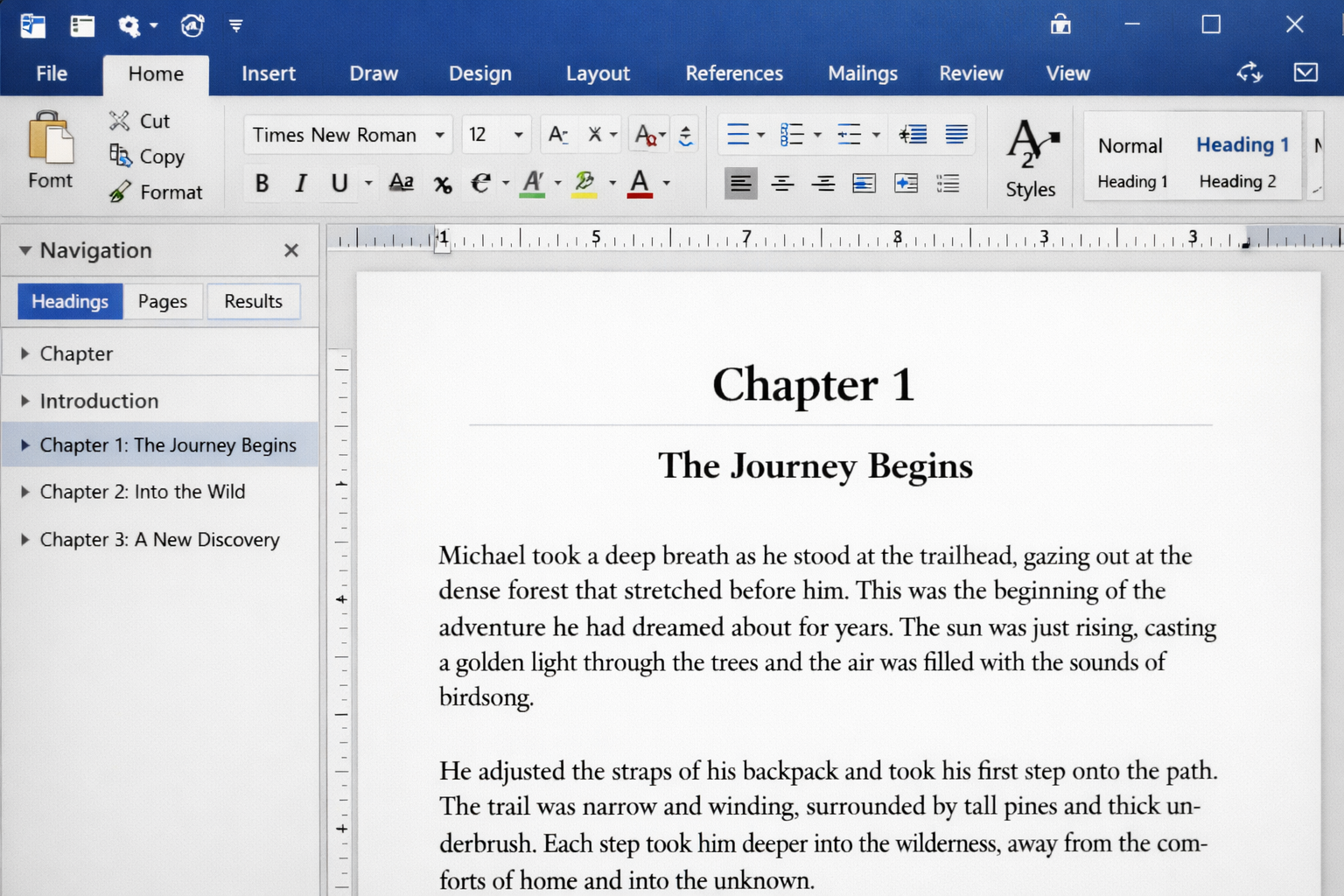
Establish a consistent heading structure using Word’s built-in styles:
- Heading 1: Book title and major sections
- Heading 2: Chapter titles
- Heading 3: Section breaks within chapters
- Normal: Body text
This hierarchy enables automatic table of contents generation and simplifies navigation through long documents.
Leveraging Word’s Writing Tools
Modern versions of MS Word include powerful writing assistance features that enhance productivity and improve manuscript quality. Understanding these tools transforms Writing a Book in MS Word from basic typing into professional manuscript development.
Navigation and Organization Features
The Navigation Pane (View > Navigation Pane) provides a document overview that displays headings, pages, and search results. This feature proves invaluable for long manuscripts, allowing quick jumps between chapters and sections. Use the search function to locate specific scenes, character names, or plot elements instantly.
Word’s Outline View offers another organizational perspective, showing document structure hierarchically. This view facilitates easy chapter reordering through drag-and-drop functionality and helps identify structural imbalances in your manuscript.
Research and Reference Tools
Word’s built-in Researcher tool (References > Researcher) provides access to scholarly sources, quotes, and factual information without leaving your document. This feature particularly benefits non-fiction authors who need to verify facts or find supporting evidence for their arguments.
The Smart Lookup feature offers quick definitions and background information about selected terms. Right-click any word or phrase and select “Smart Lookup” to access Wikipedia entries, definitions, and related web content.
For authors who need to develop strong writing habits, Word’s Focus mode (View > Focus) eliminates distractions by hiding ribbons and showing only essential writing tools.
Advanced Formatting Techniques for Writing a Book in MS Word
Professional manuscript presentation requires mastery of Word’s advanced formatting capabilities. These techniques ensure your finished product meets industry standards and presents your content in the most readable format possible.
Styles and Formatting Consistency
Create custom styles for different text elements to maintain consistency throughout your manuscript. Access the Styles gallery (Home > Styles) and modify existing styles or create new ones for:
- Chapter headings: Larger font, bold, centered, with specific spacing
- Scene breaks: Special characters or spacing to indicate transitions
- Dialogue: Consistent indentation and punctuation formatting
- Emphasis text: Italics for thoughts, foreign words, or book titles
Save these custom styles as a template for future projects by selecting File > Save As > Word Template.
Page Numbering and Headers
Professional manuscripts require specific header and page numbering formats. Insert page numbers by selecting Insert > Page Number and choose “Top of Page” with right alignment. Include your last name and book title in the header (Insert > Header) following industry conventions.
For fiction manuscripts, use the format: “Author Last Name / BOOK TITLE / Page #”
For non-fiction: “Author Last Name / ABBREVIATED TITLE / Page #”
Managing Long Documents
Large manuscripts benefit from Word’s section breaks feature, which allows different formatting within the same document. Use section breaks to:
- Start chapters on new pages
- Apply different headers to front matter vs. main content
- Change page numbering schemes (Roman numerals for front matter, Arabic for chapters)
Insert section breaks through Layout > Breaks > Next Page to maintain formatting control across your entire manuscript.
Collaboration and Editing Features
The revision process transforms rough drafts into polished manuscripts, and Word’s collaboration tools streamline this critical phase. Whether working with professional editors, critique partners, or beta readers, these features facilitate efficient feedback collection and implementation.
Track Changes and Comments
Enable Track Changes (Review > Track Changes) before sharing your manuscript with others. This feature records all modifications, showing additions in colored text and deletions with strikethrough formatting. Each reviewer’s changes appear in different colors, making it easy to identify individual contributions.
Use Comments (Review > New Comment) for questions, suggestions, or explanations that don’t require text changes. Comments appear in margin balloons and can be replied to, creating threaded discussions about specific manuscript elements.
Version Control Strategies
Maintain multiple manuscript versions to preserve your work and track progress. Save major revisions with descriptive filenames:
- “Novel_FirstDraft_Complete.docx”
- “Novel_AfterEditorialReview.docx”
- “Novel_FinalDraft_ForSubmission.docx”
Word’s Compare Documents feature (Review > Compare) highlights differences between versions, helping you track changes across major revisions.
For authors interested in overcoming writer’s block, Word’s revision history can provide motivation by showing concrete progress over time.
Preparing Your Manuscript for Publication
The final stages of Writing a Book in MS Word involve formatting your completed manuscript for submission or self-publishing. Different publication paths require specific formatting standards, and Word’s export options accommodate various requirements.
Traditional Publishing Format
Literary agents and publishers expect manuscripts formatted according to industry standards:
Font and Spacing:
- Times New Roman, 12-point font
- Double-spaced throughout
- 1-inch margins on all sides
- Left-aligned text (not justified)
Page Layout:
- Page numbers in top-right corner
- Author name and title in header
- New chapters start on new pages
- No extra spacing between paragraphs
Special Elements:
- Indent first line of each paragraph (0.5 inches)
- Use italics (not underlines) for emphasis
- Center scene breaks with # or ***
- Include word count on title page
Self-Publishing Preparation
Self-publishing platforms like Amazon KDP require different formatting considerations. Word’s export options support various e-book and print formats:
For E-books:
- Remove manual page breaks
- Use styles consistently for proper conversion
- Optimize images for digital display
- Create linked table of contents
For Print Books:
- Adjust margins for binding (larger inside margins)
- Consider font readability in smaller print sizes
- Include proper front matter (copyright page, dedication, etc.)
- Format chapter headings consistently
Export your manuscript using File > Export > Create PDF/XPS for print submissions or File > Save As > Web Page, Filtered for e-book conversion tools.
Authors planning to self-publish their work will find Word’s formatting flexibility essential for meeting platform-specific requirements.
Troubleshooting Common Issues
Even experienced users encounter challenges when Writing a Book in MS Word. Understanding common problems and their solutions prevents frustration and maintains writing momentum.
Performance and File Size Management
Large manuscripts can slow Word’s performance, especially when including images or complex formatting. Optimize performance by:
- Breaking long documents into chapters: Link them using Master Documents
- Compressing images: Use Format > Compress Pictures to reduce file size
- Limiting undo history: Save frequently and close/reopen documents periodically
- Disabling unnecessary features: Turn off real-time collaboration if working solo
Formatting Consistency Problems
Inconsistent formatting often results from copying text from external sources or mixing manual formatting with styles. Resolve these issues by:
- Using Clear Formatting: Select problematic text and click Home > Clear All Formatting
- Applying styles consistently: Avoid manual formatting in favor of predefined styles
- Checking for hidden characters: Enable Show/Hide (¶) to reveal spacing and formatting marks
- Using Find and Replace: Locate and fix formatting inconsistencies throughout the document
Backup and Recovery Strategies
Protect your manuscript investment through comprehensive backup strategies:
- Enable AutoSave: Use OneDrive or SharePoint for automatic cloud saves
- Create manual backups: Save copies to external drives or different cloud services
- Use version control: Maintain dated backup copies of major milestones
- Export regularly: Save copies in different formats (PDF, RTF) as additional protection
For writers developing productive writing plans, establishing backup routines prevents devastating data loss that could derail writing schedules.
Maximizing Productivity with Word Features
Efficiency separates successful authors from those who struggle to complete manuscripts. Word offers numerous productivity features that accelerate the writing process and maintain creative flow.
Keyboard Shortcuts and Quick Access
Master essential keyboard shortcuts to minimize interruptions:
- Ctrl+S: Save document
- Ctrl+Z: Undo last action
- Ctrl+Y: Redo last action
- Ctrl+F: Find text
- Ctrl+H: Find and replace
- F7: Spell check
- Shift+F5: Go to last edit location
Customize the Quick Access Toolbar with frequently used commands like word count, track changes, and comment insertion.
Templates and Automation
Create manuscript templates with pre-configured styles, margins, and formatting to ensure consistency across projects. Save templates through File > Save As > Word Template and access them when starting new documents.
Use AutoText entries for frequently typed phrases, character names, or location descriptions. Create AutoText by selecting text and pressing Alt+F3, then assign a shortcut for quick insertion.
Research and Writing Integration
Word’s integration with Microsoft’s ecosystem enhances research capabilities:
- OneNote integration: Link research notes directly to manuscript sections
- Outlook calendar: Schedule writing sessions and deadlines
- Excel integration: Import data tables or character tracking spreadsheets
- PowerPoint export: Create pitch presentations from manuscript content
Writers focusing on non-fiction writing methods particularly benefit from these research integration features.
Beyond the Basics: Professional Techniques
Advanced Word users can implement professional publishing techniques that elevate manuscript quality and streamline the publication process.
Cross-References and Indexing
For non-fiction works, Word’s cross-referencing capabilities create professional internal links. Insert cross-references through References > Cross-reference to automatically update page numbers and section references when content changes.
Create comprehensive indexes using References > Insert Index after marking index entries throughout your document. This feature proves essential for academic works, how-to guides, and reference materials.
Table of Contents Automation
Generate professional tables of contents automatically by using consistent heading styles. Navigate to References > Table of Contents and select a format that matches your manuscript style. The table updates automatically when you add or modify headings.
Bibliography and Citation Management
Word’s citation tools (References > Citations & Bibliography) support various academic and professional citation styles including APA, MLA, and Chicago. This feature streamlines the citation process for research-heavy non-fiction works.
For authors interested in incorporating literary techniques, Word’s reference tools help maintain academic credibility while enhancing readability.
Conclusion
Writing a Book in MS Word transforms the intimidating prospect of manuscript creation into a manageable, systematic process. From initial document setup through final publication preparation, Word’s comprehensive feature set supports every stage of book development. The software’s industry-standard compatibility ensures your manuscript meets professional expectations while its familiar interface minimizes learning curves that could impede creative flow.
Success with Word depends on leveraging its organizational tools, collaboration features, and formatting capabilities strategically. By implementing proper document structure, utilizing styles consistently, and mastering revision workflows, authors can focus on crafting compelling content rather than wrestling with technical challenges.
The investment in learning Word’s advanced features pays dividends throughout your writing career. Whether pursuing traditional publishing or self-publishing paths, the skills developed through Writing a Book in MS Word transfer to future projects and professional writing endeavors.
Take action today: Open a new Word document, implement the setup techniques outlined in this guide, and begin your manuscript journey. Your book awaits, and you now possess the tools to bring it to life professionally and efficiently. Start with a single page, apply these proven techniques, and watch your manuscript grow into a publication-ready work that showcases both your creative vision and professional presentation standards.


